


Quote graphic design is the process of transforming written quotes into visually compelling graphics using typography, layout, color, and branding elements. Let’s admit that we have all done it. Loved a quote. Took a screenshot of it. Saved it. Shared it.
But here’s the truth: words alone don’t stop the scroll. It’s also the design that grabs the audience’s attention. Today, Instagram and other social media platforms are full of feeds that contain highly polished visuals. So, how can your quote graphic design stand apart?
With the help of Blend, you can master the art of thoughtful typography, visual hierarchy, color strategy, and layout balance. Let’s dive in and find out how to design professional quote graphics. We will also tell you what makes them perform well, and how to create them efficiently using Blend, an all-in-one AI-powered tool.
What Is Quote Graphic Design/Quote Marketing?
Quote graphic design is the process of transforming written quotes into visually compelling graphics using typography, composition, color, and imagery. As a writer, I have always dreamt of seeing my words in social media quote graphics format. This is completely different from plain text posts.
A designed quote captures attention immediately and communicates emotion before the full message is even read. According to statistics, visuals are processed 60,000 times faster than text. That’s why many people use quote marketing to get more clicks.
From motivational quote design for entrepreneurs to elegant inspirational quote graphics for lifestyle brands, this format works across nearly every industry. When done correctly, quote graphics become recognizable brand assets rather than disposable content.
How to Create a Quote Graphic Instantly with Blend: A Step-by-Step Guide
Back in the days, designing a quote graphic meant opening Photoshop and doing hours of tedious work. From adjusting layers manually to testing font pairings and spending time perfecting alignment, we have done it all. Phew! That sounds laborious.
Thankfully, the Blend app eliminates these complexities completely. Here’s how you can create quote designs instantly:
Step 1: Open Blend AI Design
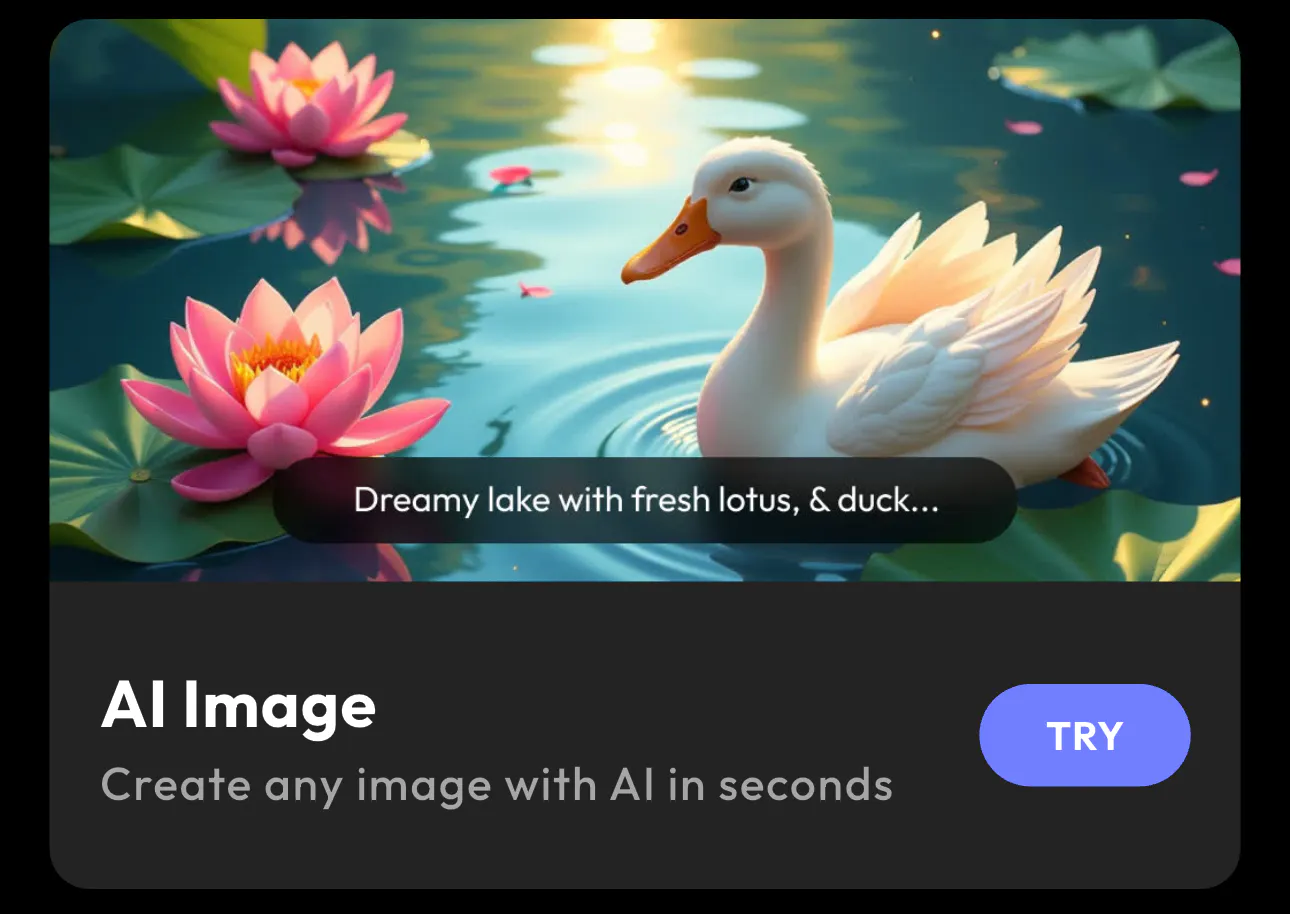
- Go to the Blend app and select the AI Image feature. On the main dashboard, you will see several options, including:
- Typography
- Sticker
- Signature
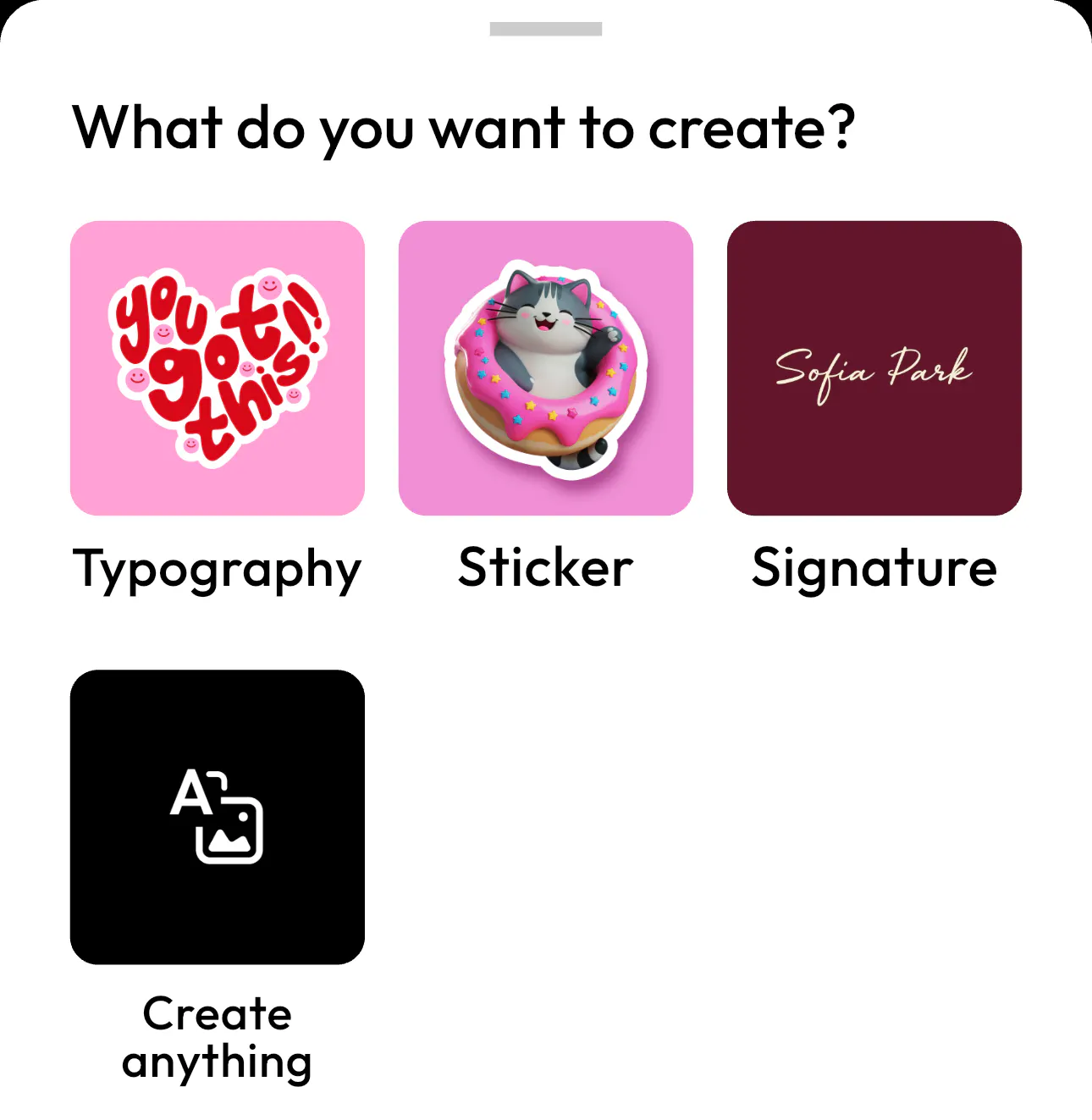
To create a Quote Graphic, click on Typography. This section is specifically built for text-based designs. It is perfect for:
- Motivational quotes
- Inspirational social media posts
- Bold statement designs
- Branded typography layouts
- Love quotes
- Friendship quotes
- Heartbreak quotes
Once you are inside the Typography feature, all you have to do is enter your quote and let Blend’s swift AI-model generate a professionally styled layout.
Blend automatically takes care of font pairing, spacing, hierarchy, and visual balance. This turns your simple text into a visually compelling quote graphic design.
Instead of manually adjusting every design element, you get to focus on the message and let AI handle the presentation aspect of it.
Step 2: Type Your Quote and Choose the Format
Once you are inside the Typography section, you will see the “Type-in your text” panel. This is where your Quote Graphic begins.
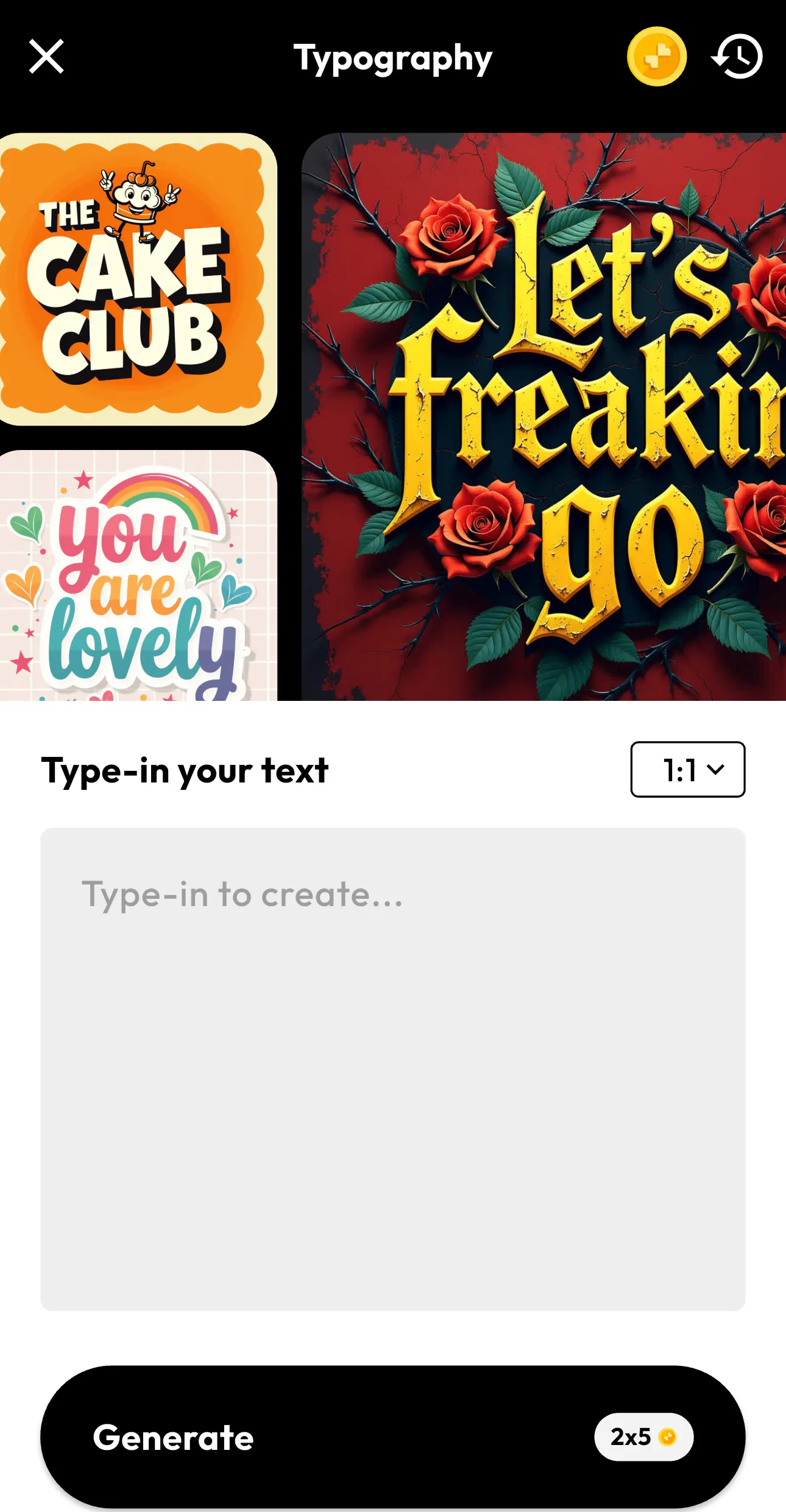
In the input box labeled “Type-in to create…”, simply enter your quote. Before generating, you need to select your preferred format ratio using the dropdown. For example, if you want to post this on your Instagram, then the 1:1 ratio works perfectly for feed posts.
Once your text is ready and the size is selected, click Generate. The AI will instantly produce multiple styled versions of your Quote Graphic, automatically handling:
- Font pairing
- Text hierarchy
- Spacing and alignment
- Decorative elements
- Visual balance
Instead of manually testing dozens of font combinations, you receive polished, ready-to-use typography designs in seconds.
Take a look at some of the quotes I generated using Blend:
Step 3: Select, Customize, and Export Your Quote Graphic
After clicking Generate, Blend still gives you the authority to do whatever you want by offering multiple typography variations of your Quote Graphic. It gives you two variations at once and you can select the one you like. Moreover, you can customize it further.
You can tap on the picture you like and enter the preview screen where you have several options:
- Open in editor for deeper customization
- Change colors to refine the look
- Erase by circling or scribbling (Magic Eraser)
- Remove background
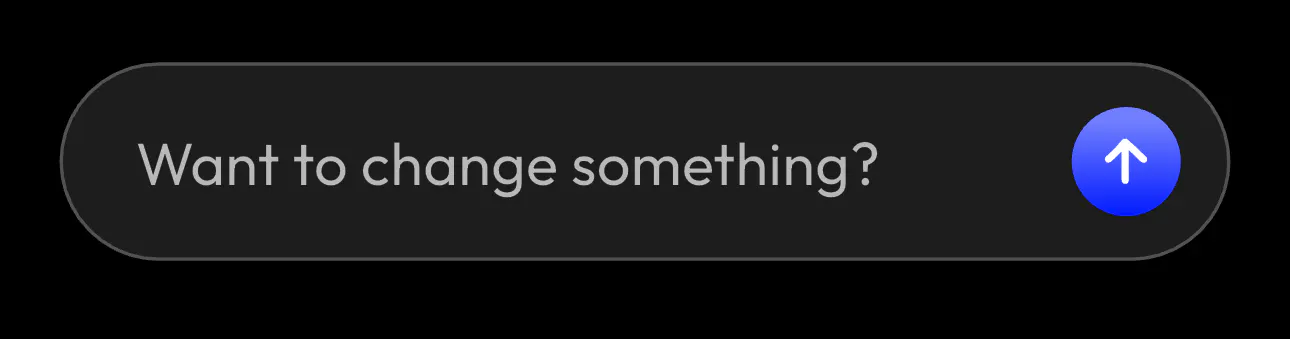
At the bottom, you will also find a quick prompt that says, “Want to change something?”. Here, you can describe adjustments and let Blend’s AI refine the design further.
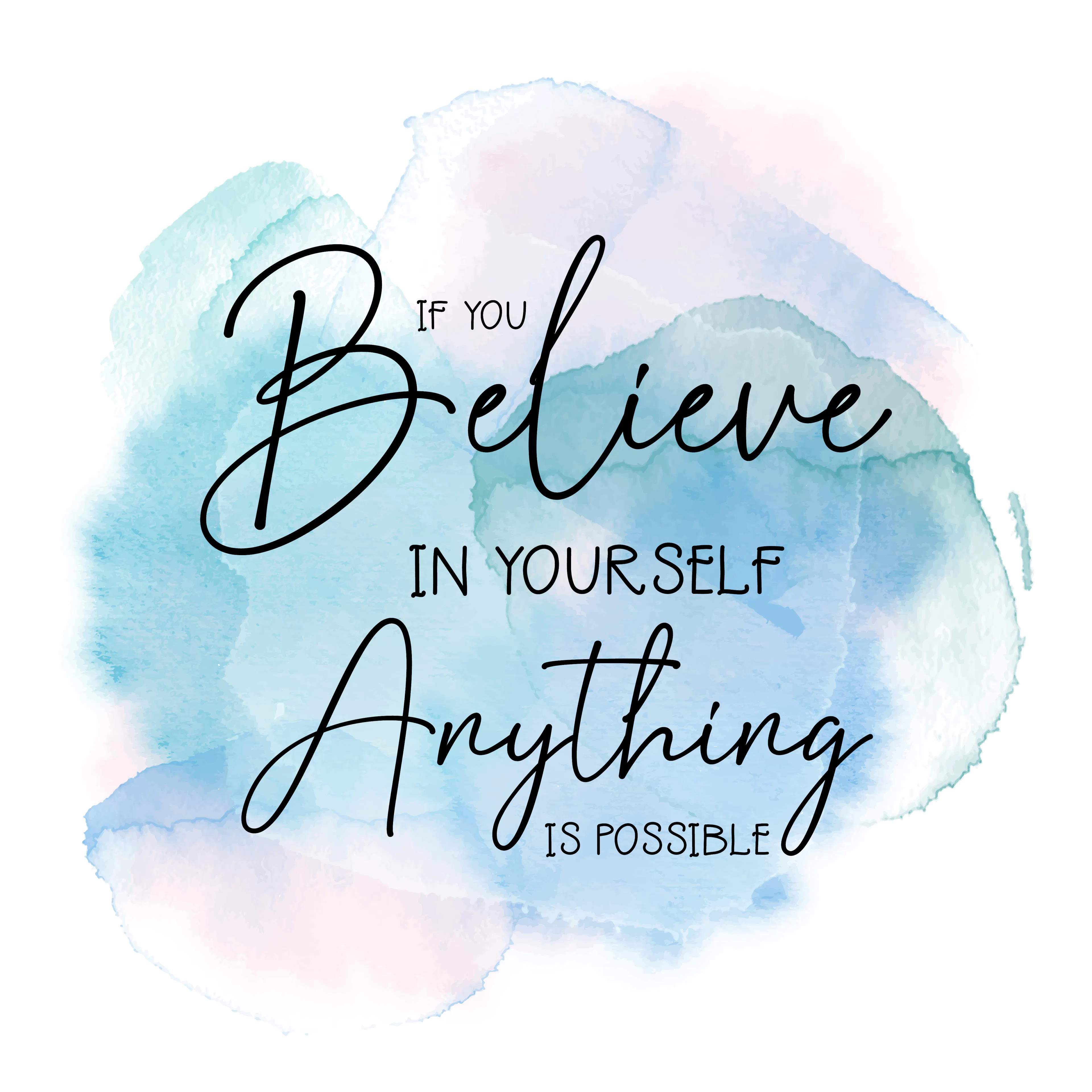
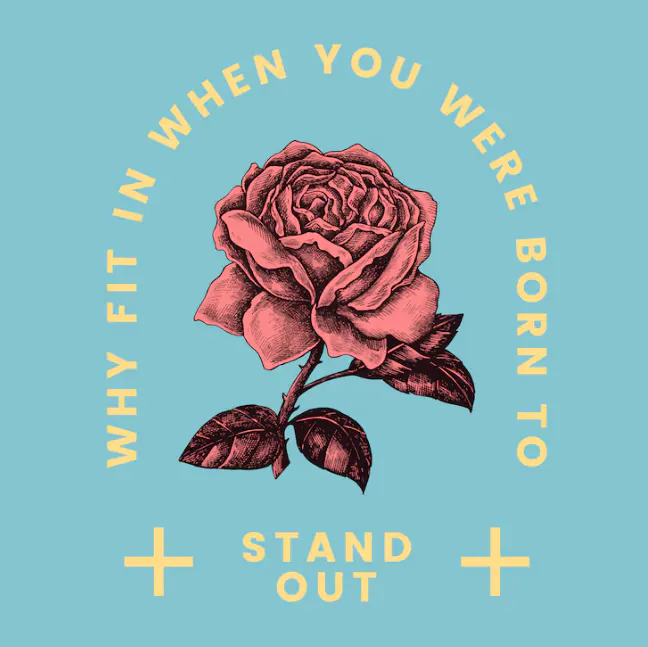
Here are some quote graphic designs I created easily with the help of Blend:
Why Quote Graphics Perform So Well on Social Media
Quote graphics consistently outperform many standard posts because they are simple, emotionally driven, and easy to consume. On platforms like Instagram, LinkedIn, and Pinterest, users often save and share quotes that resonate with them personally.
Well-designed Instagram quote post design works because it:
- Delivers value quickly
- Encourages reposting
- Reinforces authority
- Builds visual brand consistency
Unlike promotional graphics, quotes feel relatable rather than sales-driven. They connect to people on an emotional level.
Conclusion
A great written quote can inspire all of us, but only a well-designed quote graphic can amplify that inspiration and make it unforgettable. With Blend’s AI-powered Typography feature, you can create professional quote graphics in minutes. All you have to do is focus on the message and let Blend’s AI Design handle the rest.
FAQs
What is quote graphic design?
Quote graphic design is the visual presentation of written quotes using typography, layout, and branding elements to increase engagement and shareability.
What size should Instagram quote graphics be?
The most effective sizes are 1080x1080 pixels for square posts and 1080x1350 pixels for portrait posts.
How many fonts should I use in a quote graphic?
Most professional designs use two to three fonts to maintain clarity and visual balance.
How do I create quote graphics online?
You can use a design platform like Blend to choose templates, customize typography, apply backgrounds, and export high-resolution files.